Uploading Sheets
Scan and upload petition sheets with front/back images and signature counts.
After a petitioning session, the collected sheets need to be scanned and uploaded into the app. Each sheet is uploaded individually with its city, signature count, and images.
Opening the Upload Dialog
To upload a sheet, open the Sheets tab in the petitioning hub and click the Upload button.
Uploading a Sheet
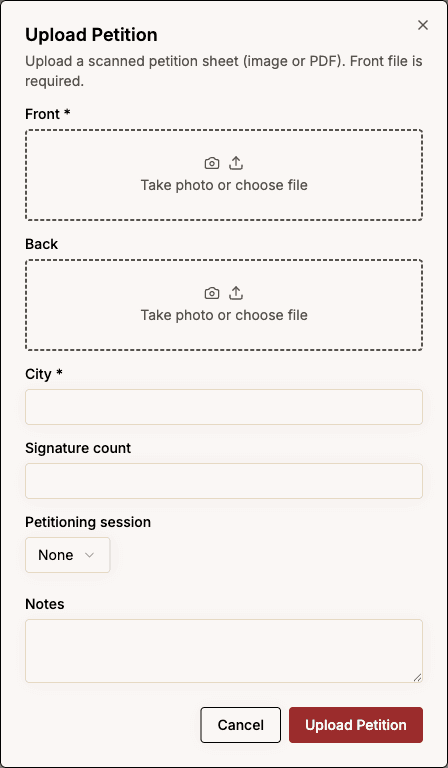
In the upload dialog, fill in the following:
| Field | Required | Description |
|---|---|---|
| Front image | Yes | A photo or scan of the front of the petition sheet. |
| Back image | No | A photo of the back, if the sheet is double-sided. |
| City | Yes | The city or municipality the petition is for. |
| Signature count | No | The number of signatures on the sheet. Must be a non-negative whole number. |
| Petitioning session | No | The session this sheet came from. Select from the dropdown to link it. |
| Notes | No | Any additional context (max 2,000 characters). |
Click Upload to save. The sheet will appear in the Sheets tab with a Collected status badge.
Viewing Uploaded Sheets
Open the Sheets tab in the petitioning hub to see all uploaded sheets.
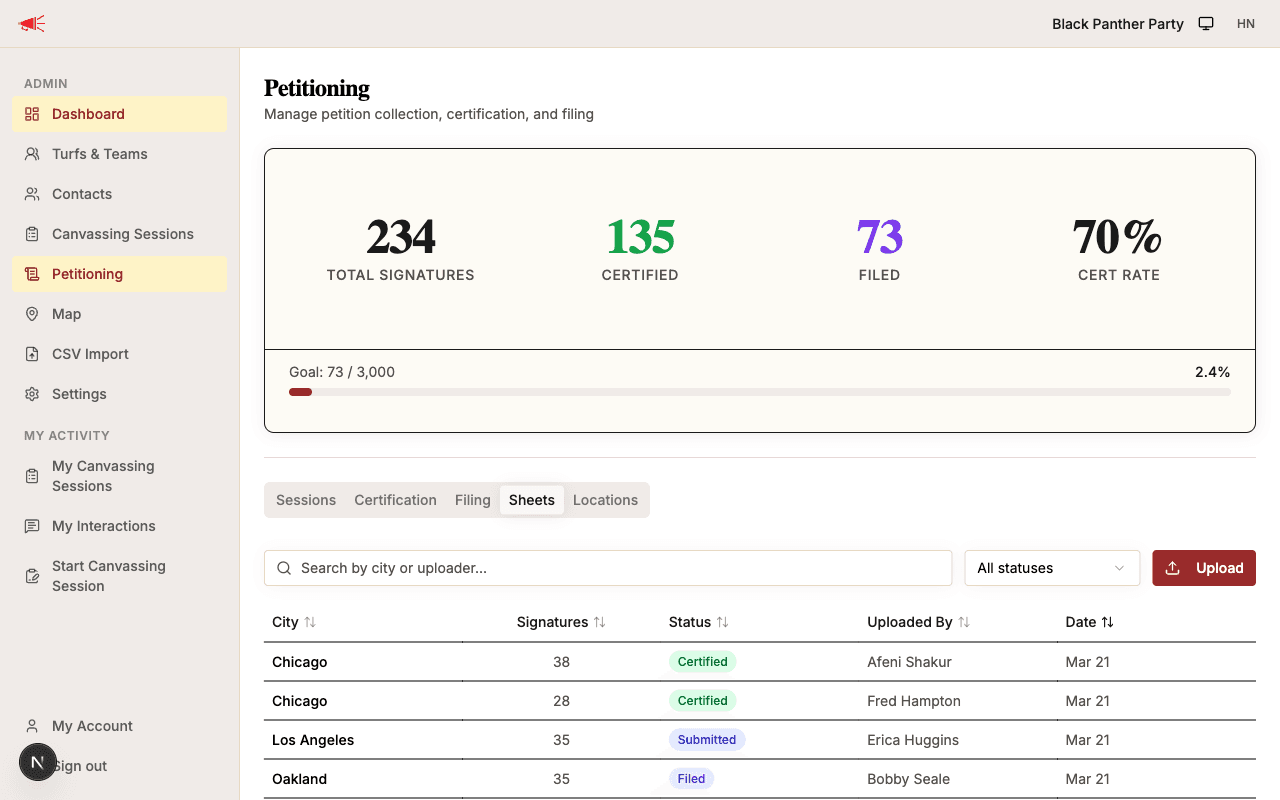
The table shows:
- City — Which municipality the sheet belongs to.
- Signatures — The count entered during upload.
- Status — Current lifecycle status (Collected, Submitted, Certified, or Filed).
- Uploaded by — The member who uploaded the sheet.
- Date — When the sheet was uploaded.
Use the search bar to filter by city or uploader name, and the status filter to show only sheets in a specific stage.
What's Next
Once sheets are uploaded and certified by their city hall, the certified copies can be scanned back into the app for tracking.