Integrations
Sync data to external systems by calling a webhook whenever a tracked operation happens in your space.
Integrations let your space call an external webhook whenever a tracked operation happens — for example, when a contact is created. Point an integration at a Zapier catch hook, your CRM, or any HTTPS endpoint, and Organizer HQ will deliver a JSON payload there in real time.
Integrations are managed by Admins and Staff. You'll find them under Settings → Integrations.
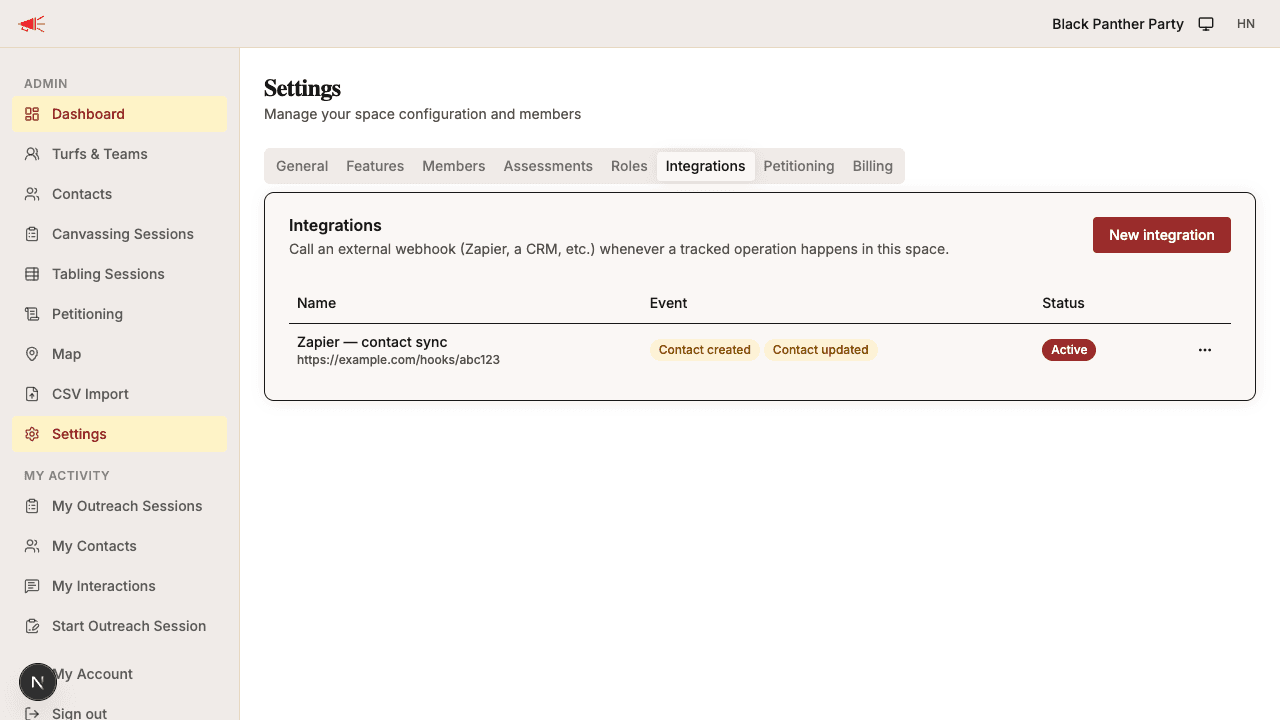
Creating an Integration
- Open Settings from the sidebar.
- Go to the Integrations tab.
- Click New integration.
- Fill in the form:
- Name — a label to help you recognize this integration.
- Trigger events — check one or more operations that should fire the webhook (see Available events). A single integration can listen for several events.
- Webhook URL — the HTTPS endpoint we'll POST to. For Zapier, paste the "Catch Hook" URL from a Webhooks by Zapier trigger.
- Auth token (optional) — sent as the
Authorizationheader on every request (see Authentication).
- Click Create.
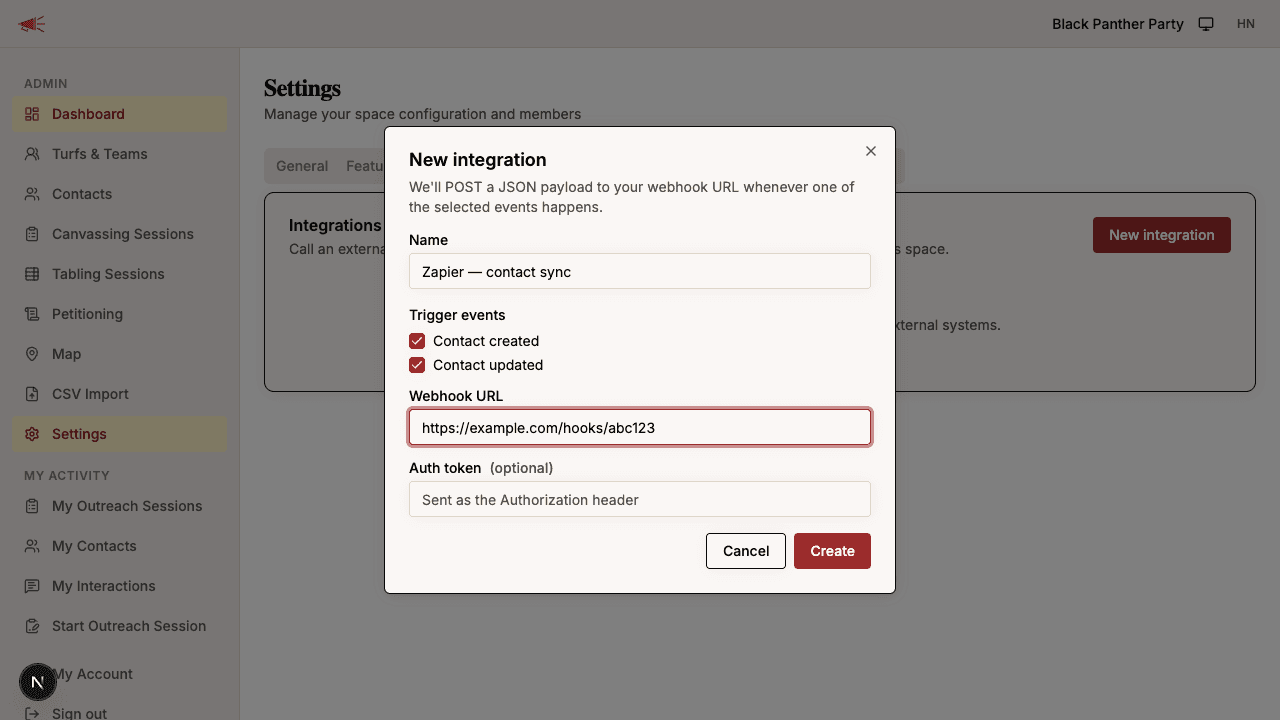
When you create an integration we generate a signing secret and show it to you once. Copy it somewhere safe — you'll need it to verify that incoming webhooks really came from Organizer HQ. See Verifying signatures.
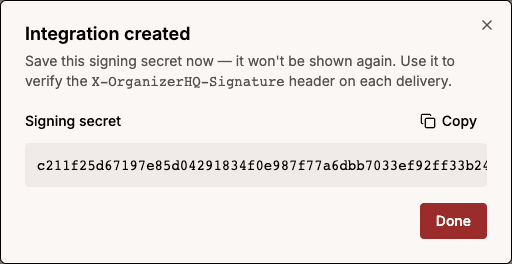
Available Events
| Event | Fires when |
|---|---|
contact.created | A new contact is added to your space. |
contact.updated | An existing contact's details are changed, or an address is linked to the contact. |
An integration can subscribe to any combination of these. The delivered
payload's event field tells you which one fired. More events will be added
over time.
These events fire wherever a contact is created or changed in the app — whether someone adds a contact directly, records one at a tabling session, or an interaction updates a contact's details.
Bulk CSV imports do not trigger webhooks. Importing a spreadsheet can create or update thousands of contacts at once, so imports are intentionally excluded to avoid flooding your endpoint.
Payload Format
Every delivery is an HTTP POST with a JSON body in this shape:
{
  "event": "contact.created",
  "spaceId": "your-space-id",
  "occurredAt": "2026-06-28T15:04:05.000Z",
  "data": {
    "publicId": "cnct_01aryz6s41tsv4rrffq69g5fav",
    "contactType": "person",
    "firstName": "Jane",
    "lastName": "Doe",
    "businessName": null,
    "email": "[email protected]",
    "phoneNumber": "555-867-5309",
    "primaryLanguage": "English",
    "zip": "62704",
    "address": {
      "streetAddress1": "123 Main St",
      "streetAddress2": "Apt 4B",
      "city": "Springfield",
      "state": "IL",
      "zip": "62704"
    }
  }
}
The address field is the contact's first linked address, or null if the
contact has no address on file.
The top-level zip field is the contact's own zip code — collected, for
example, when the contact is recorded at a tabling session. When the contact
has no zip of their own it falls back to the first linked address's zip, and
it is null when neither exists.
Each request also includes these headers:
| Header | Description |
|---|---|
X-OrganizerHQ-Event | The event key, e.g. contact.created. |
X-OrganizerHQ-Delivery | A unique ID for this delivery — use it to dedupe. |
X-OrganizerHQ-Signature | HMAC signature of the body (see below). |
Authorization | Your auth token, if you set one. |
Authentication
If your endpoint requires authentication, set an Auth token on the
integration. We send it verbatim as the Authorization header on every
request — for example Bearer abc123. The token is encrypted at rest and is
never shown again after you save it. To change it, edit the integration and
enter a new token; leave the field blank to keep the existing one.
Verifying Signatures
To confirm a webhook genuinely came from Organizer HQ, verify the
X-OrganizerHQ-Signature header. It has the form sha256=<hex>, where
<hex> is an HMAC-SHA256 of the raw request body keyed with your
integration's signing secret.
import crypto from "node:crypto";

function isValid(rawBody, signatureHeader, signingSecret) {
  const expected =
    "sha256=" +
    crypto.createHmac("sha256", signingSecret).update(rawBody).digest("hex");
  const expectedBuf = Buffer.from(expected);
  const receivedBuf = Buffer.from(signatureHeader ?? "");
  // timingSafeEqual throws on length mismatch, so reject first if a header
  // is missing or truncated.
  if (receivedBuf.length !== expectedBuf.length) return false;
  return crypto.timingSafeEqual(expectedBuf, receivedBuf);
}
Always compute the HMAC over the exact bytes you received, before any JSON parsing or reformatting.
Retries and Reliability
If a delivery fails (a network error, a timeout, or any non-2xx response),
we automatically retry up to three more times with an exponential backoff
of roughly 2 seconds, then 8 seconds, then 64 seconds.
Because retries mean a webhook may occasionally be delivered more than once,
make your endpoint idempotent — dedupe on the X-OrganizerHQ-Delivery
header.
Automatic Disabling
If an integration fails repeatedly across several deliveries, we automatically disable it to stop sending to a broken endpoint, and email your space's admins so they know. Once you've fixed the endpoint, re-enable the integration from the Integrations tab.
Testing and Monitoring
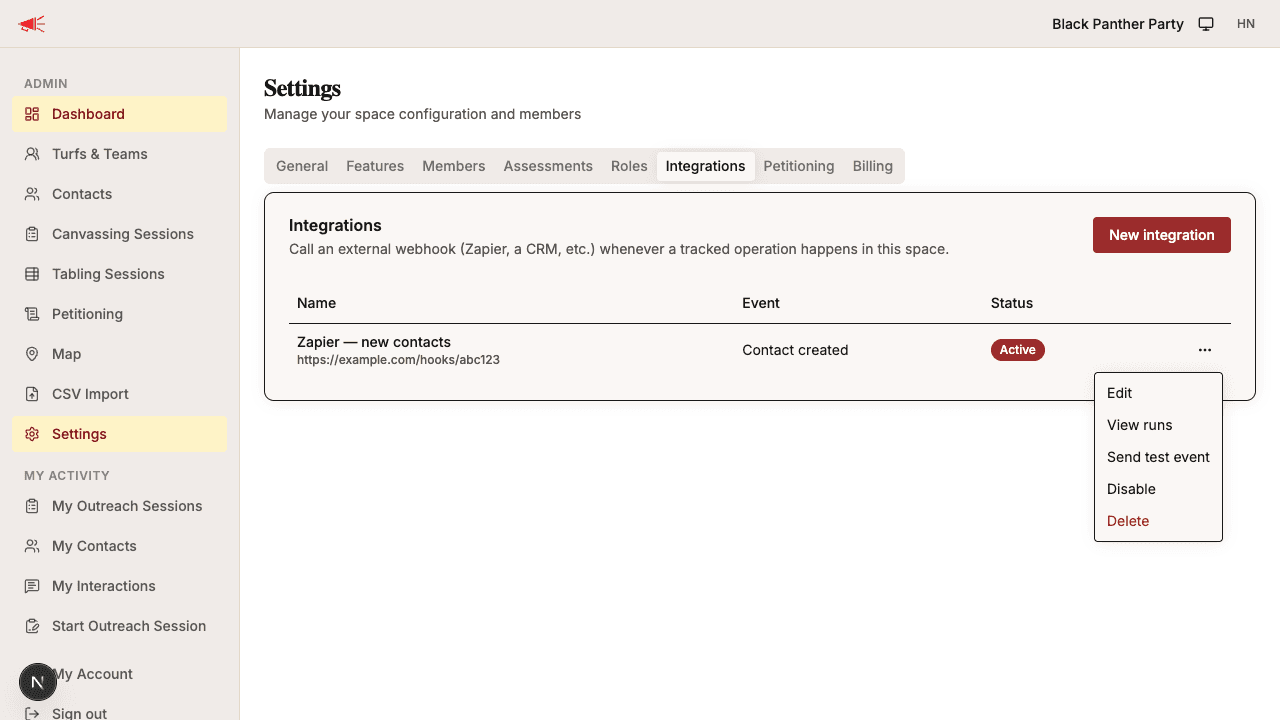
- Send a test event — from the actions menu (•••) next to an integration, choose Send test event to deliver a payload immediately for each event the integration subscribes to. Test deliveries carry sample contact data (e.g. Jane Doe) with exactly the same fields as a real event — matching the Payload Format above — so you can build your Zapier or CRM field mappings entirely off a test event.
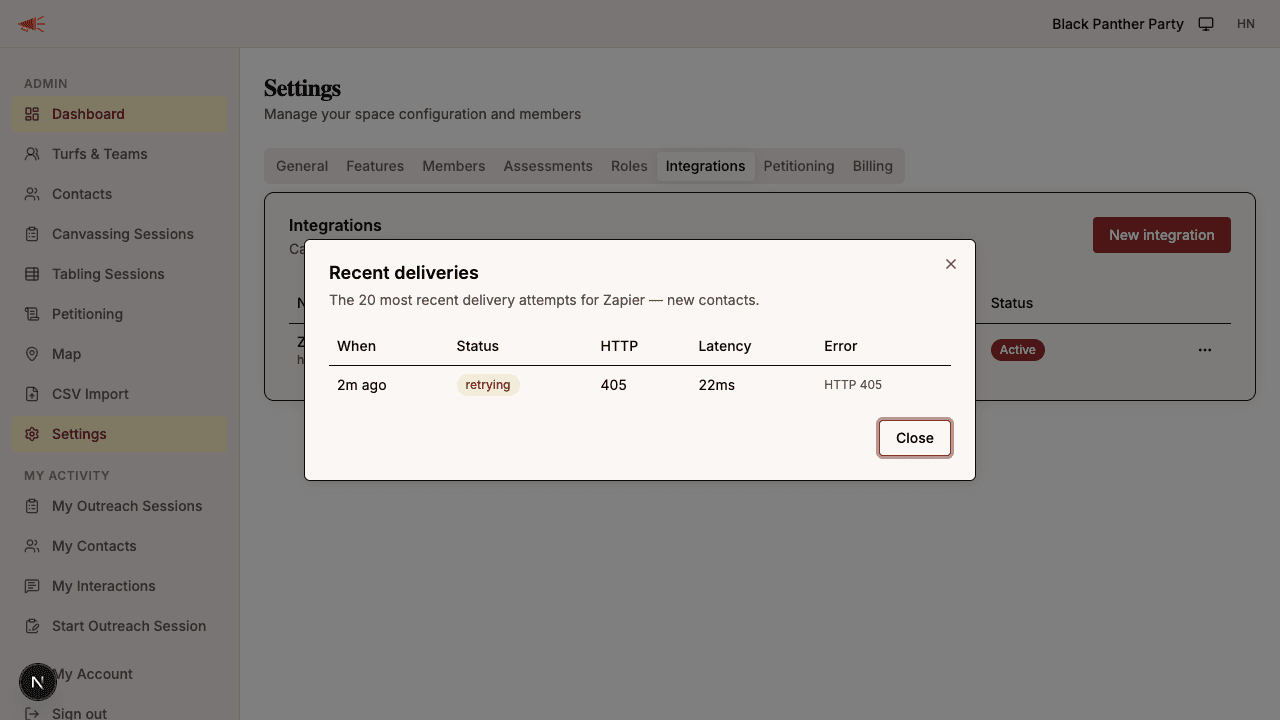
- View runs — choose View runs to see recent delivery attempts with their status, HTTP response code, latency, and any error message.
- Enable / Disable — temporarily pause an integration without deleting it.
Permissions
Managing integrations requires the integrations permissions, which Admins
and Staff have by default. You can adjust these per role under
Settings → Roles.