Inviting Members
Add new members to your space by sending email or phone invitations.
To add someone to your space, send them an invitation. Invitees receive a link via email or SMS and can accept it to join your organization with the role you assign.
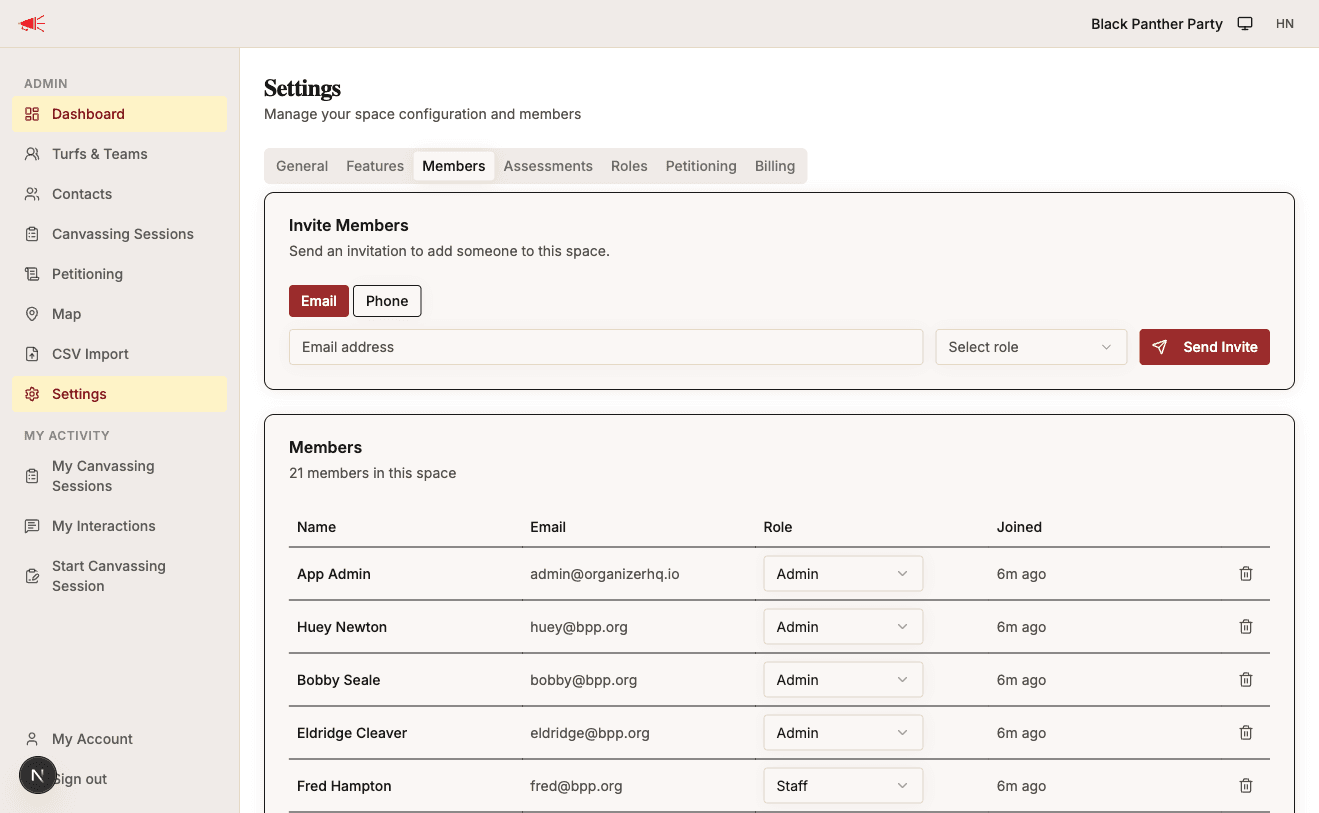
Sending an Invitation
- Open Settings from the sidebar.
- Go to the Members tab.
- In the Invite Members section, choose Email or Phone.
- Enter the person's email address or phone number.
- Select a Role from the dropdown (Admin, Staff, Volunteer Captain, or Volunteer).
- Click Send Invite.

The invitee will receive an email or SMS with a link to accept the invitation.
Non-admin members can only invite people as Volunteer. Admins can assign any role.
What the Invitee Sees
When someone clicks the invite link:
- If they already have an account — they are prompted to sign in and accept.
- If they don't have an account — they see a registration form with their email pre-filled.
After accepting, they become a member of the space with the assigned role and are redirected to the home page.
Managing Invitations
Pending invitations appear below the invite form. From there you can:
- Resend an expired or reinvite-requested invitation.
- Cancel a pending invitation.
If an invitation expires, the invitee can click the link again and request a new one.
Managing Existing Members
The Members section of the tab lists everyone in the space with their name, email, role, and join date.
Admins can:
- Change a member's role using the role dropdown in their row.
- Remove a member by clicking the trash icon.
Roles
| Role | Description |
|---|---|
| Admin | Full access to all settings, members, and features. |
| Staff | Can manage contacts, sessions, and petitioning workflows. |
| Volunteer Captain | Can lead teams and manage volunteer activity. |
| Volunteer | Can log their own sessions and upload sheets. |