Certifying Signatures
Scan certified petition sheets and match them to your originals.
Before petition signatures can be filed with the state, they must be certified by the city or town where they were collected. The Certification tab helps you upload and track certified sheets as they come back from city hall.
The Certification Tab
Navigate to the Certification tab in the petitioning hub. You'll see a table of every city for which you have petition sheets.
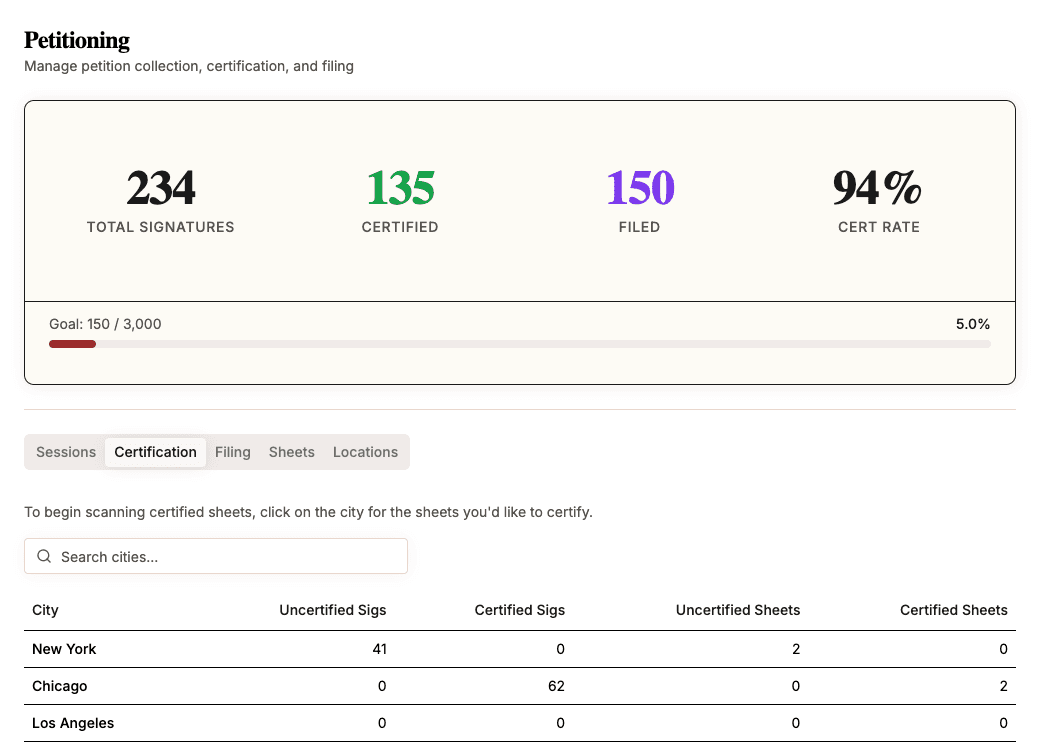
The table has the following columns:
| Column | Description |
|---|---|
| City | The city name. |
| Uncertified Sigs | Total signatures on sheets that haven't been certified yet. |
| Certified Sigs | Total certified signature count from scanned sheets. |
| Uncertified Sheets | Number of sheets still awaiting certification. |
| Certified Sheets | Number of sheets that have been certified. |
Cities are sorted by uncertified signature count (highest first), so the cities with the most work remaining appear at the top. Use the search bar to find a specific city.
Scanning Certified Sheets
When you receive certified sheets back from city hall, click the city row to enter the scan view.
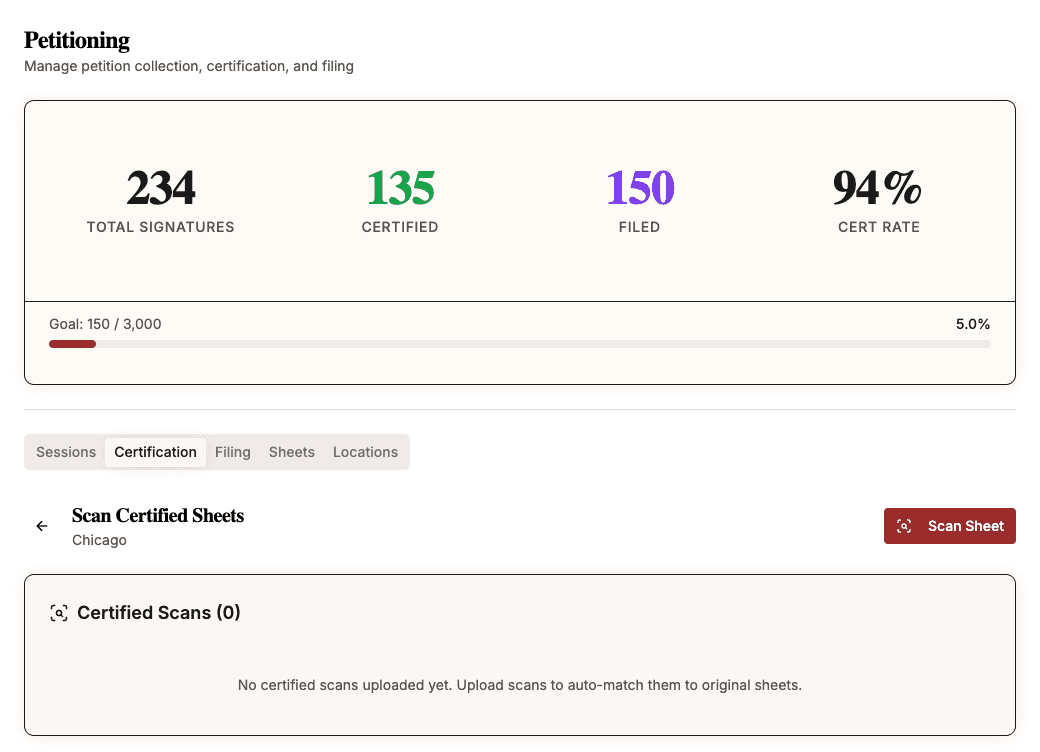
Click Scan Sheet to open the upload dialog.
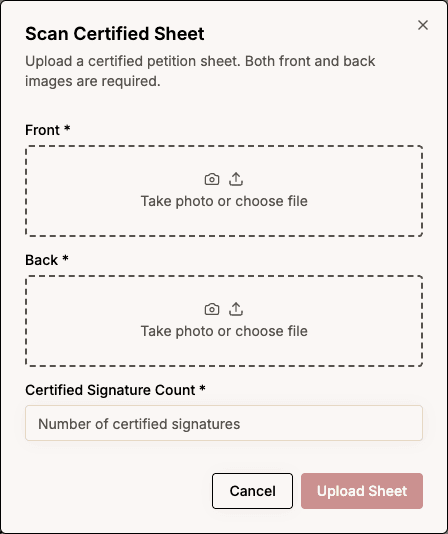
For each certified sheet:
- Upload the front image (required).
- Upload the back image (required).
- Enter the certified signature count — the number of signatures the city approved on this sheet.
- Click Upload Sheet.
The system will automatically process the scan and attempt to match it to one of your original uncertified sheets using OCR.
Reviewing Scans
After uploading, scans appear in one of two sections:
- Matched — The scan was automatically matched to an original sheet. The sheet's status updates to Certified with the certified signature count you entered.
- Needs Review — The scan couldn't be automatically matched. You'll need to find the match manually or create a new sheet from the scan.
For unmatched scans, you can:
- Find Match — Browse or search your original sheets to find the correct match.
- Create Sheet — If the original sheet was never uploaded, create a new one from the certified scan.
What's Next
Once sheets are certified and scanned, they can be filed with the state. Only sheets that have been scanned with a certified signature count can be added to a filing batch.