Reviewing Interactions
Review and edit past door-knock interactions from your canvassing sessions.
The My Interactions page lets you review all the door knocks you've recorded across your canvassing sessions. You can filter by outcome or date range, and tap into any interaction to see its full details or make edits.
Viewing Interactions
Open My Interactions from the sidebar. You'll see a list of interactions from sessions you've participated in, sorted by most recent first.
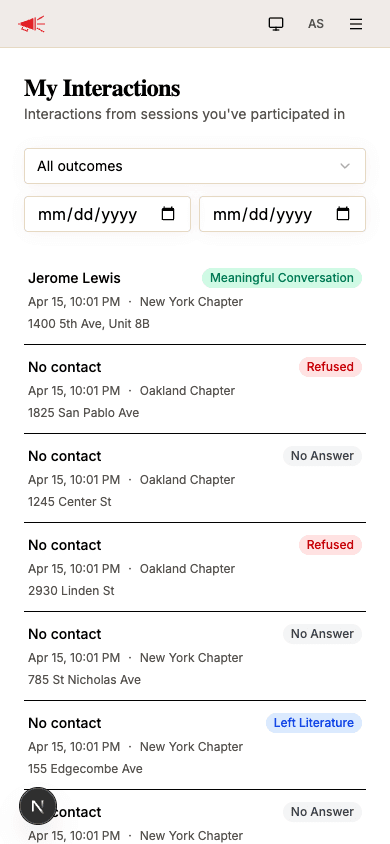
Each interaction shows:
- Contact name — the person you spoke with, or "No contact" if none was recorded
- Outcome badge — color-coded by type (Meaningful Conversation, Refused, No Answer, etc.)
- Date and team — when the interaction happened and which team's session it came from
- Address — the location of the door knock
Filtering
Use the filters at the top to narrow down the list:
- Outcome — select a specific outcome type from the dropdown (e.g., only show Meaningful Conversations)
- Date range — set a "From" and "To" date to show interactions within a specific time period
Interaction Detail
Tap any interaction to view its full details.
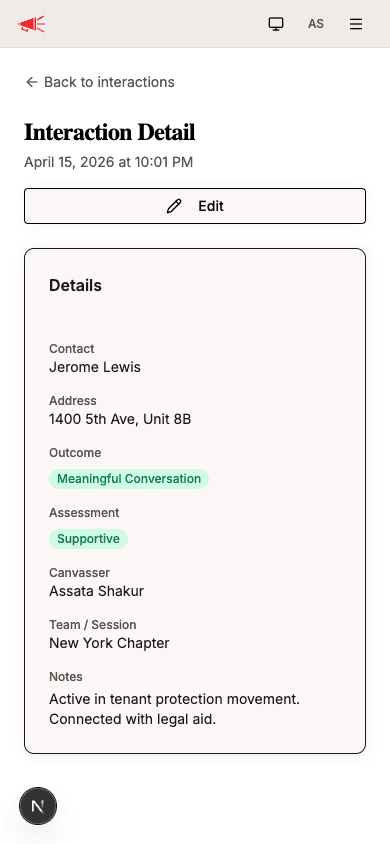
The detail page shows:
| Field | Description |
|---|---|
| Contact | The contact's name, if one was recorded. |
| Address | The full address where the interaction took place. |
| Outcome | The outcome of the door knock (e.g., Meaningful Conversation). |
| Assessment | The assessment tag, if one was assigned (e.g., Supportive). |
| Canvasser | The volunteer who recorded the interaction. |
| Team / Session | Which team's canvassing session this was part of. |
| Notes | Any notes the canvasser recorded. |
Editing an Interaction
To correct or update an interaction, tap the Edit button. You can change the:
- Outcome — update what happened at the door
- Assessment — add, change, or remove the assessment tag
- Notes — update the notes
The address and contact cannot be changed after recording — if these are wrong, record a new interaction at the correct address.